Login/Signup
Connect your Roo Code extension to Roo Code Cloud to sync your prompts, access online task history, and enable sharing and collaboration features.
Getting Started
To connect your extension to Roo Code Cloud:
- Go to the Cloud tab in the top right corner of the Roo Code extension.

- Click on the big blue button (and click on "Open" if asked).
- Sign up for or sign in to your account, using the auth method of your choice
- Review and accept the terms of service and privacy policy
- The next page will attempt to redirect you back to VS Code, accept it
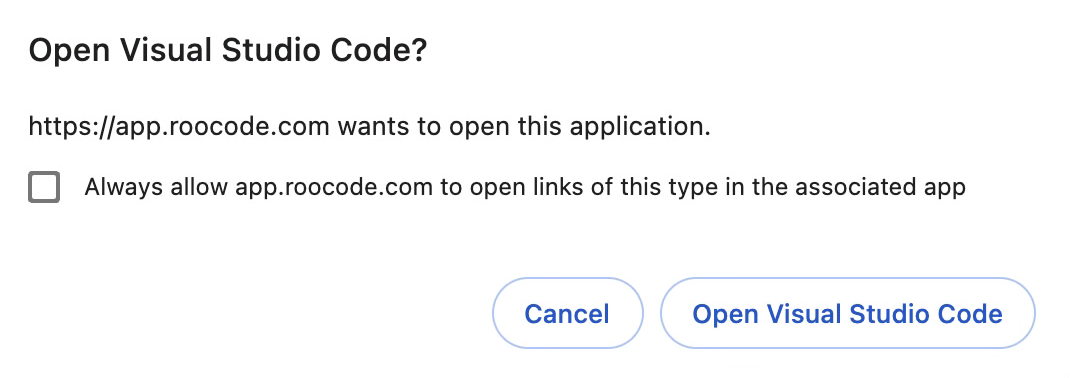
- You'll be logged in
Troubleshooting
If you're not taken to your IDE, from this screen:
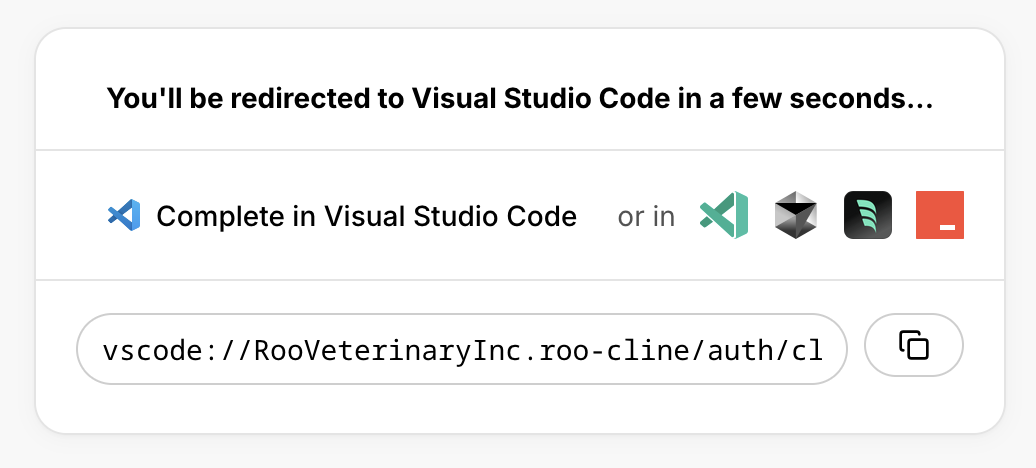
You can:
- Click on the logo for your IDE (eg VS Code, Trae, Cursor) and see if the popup appears, or
- Copy the URL from the box below and, in the extension, click on "Having Trouble?" and paste it in
Your Roo Code VS Code extension is now connected to Roo Code Cloud and ready to sync your data and enable collaboration features.
If you never even see the screen above, go back to the extension, click on "Start Over" and try again. It should work now.
Authentication Security
Roo Code Cloud uses industry-standard OAuth with GitHub and Google, plus traditional email authentication to ensure secure access to your account:
- OAuth 2.0 Protocol - Secure authentication through trusted providers (GitHub and Google)
- No Password Storage - When using OAuth, Roo Code never stores your GitHub or Google passwords
- Encrypted Connections - All authentication requests use HTTPS encryption
- Token-Based Access - Secure tokens manage your session without exposing credentials
- Email Authentication - Traditional email/password option with secure password hashing